T801
This error message indicates that the email associated with your LTI account must match the email associated with your DeltaMath account.
|
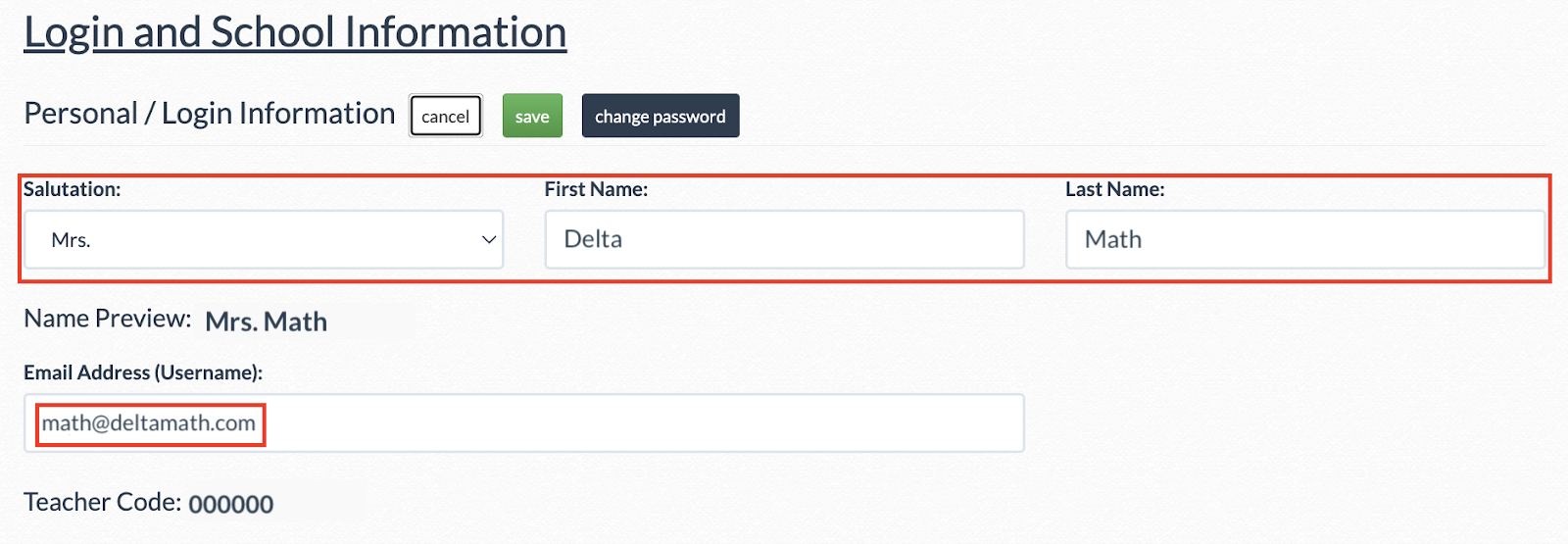
First, navigate to TOOLS → LOGIN/SCHOOL INFORMATION. At the top of the screen, you will see your name, login information, and teacher code.
Click the “edit” button to change your name or email address, and be sure to click the “save” button after your changes have been made. |
 |
| Note: If you are not able to log into your account to change your email address, please reach out to us at support@deltamath.com. |
T802
This error message indicates that you will need a DeltaMath INTEGRAL account to launch into the integration.
| First, create a DeltaMath account here by clicking the “Create Account” button. |  |
| Then click the “PLUS/INTEGRAL” tab in your top toolbar. You will see an option to upgrade your account to DeltaMath INTEGRAL. |  |
T805
This error message indicates that you are attempting to launch into a DeltaMath integration for a specific district. However, the school associated with your DeltaMath teacher account is outside of this district. To fix this, you can update the school associated with your account to a school within the specific district.
|
To update the school associated with your account, navigate to TOOLS → LOGIN/SCHOOL INFORMATION.
Next to “School Information,” click “Edit.” |
|
| Click “This is not my school.” |  |
|
Select your state and search for the name of your school.
Note: Be sure to select a school that is within the district of the integration that you are trying to launch into. |
 |
|
The name and address of your selected school should appear in the blue box. Click “Declare My School.”
Once your school is updated, you should be able to successfully launch into the integration. |
 |

T806
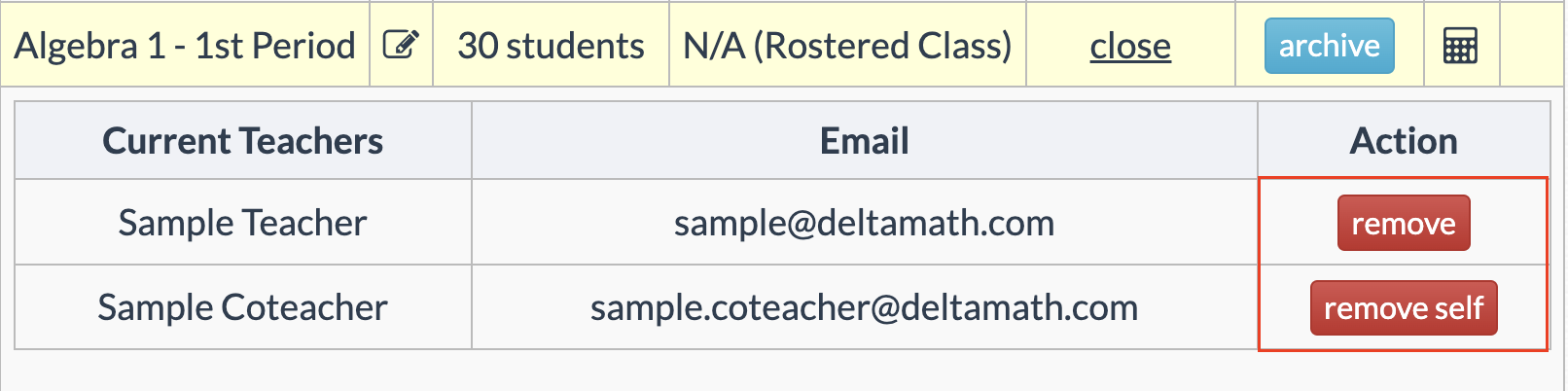
This error message indicates that you are attempting to launch into another teacher's integration. To launch, the original teacher will need to invite you as a coteacher to the class(es) from within DeltaMath.
| To add you as a coteacher, the original teacher should click “manage” underneath the “Coteachers” column. |  |
|
They will be prompted to invite you as a coteacher via email. They should type in your email address and click “send invite.” They should repeat this process for every class that you should be listed as a coteacher. |
 |
|
Once invited, you should be able to successfully launch into the integration. |
 |
T807
This error message indicates that you are attempting to launch into a class where you are not currently listed as a coteacher within DeltaMath. Please reach out to the teacher(s) indicated on the error message, who will need to invite you as a coteacher to the class(es) from within DeltaMath.
| To add you as a coteacher, the original teacher should click “manage” underneath the “Coteachers” column. | |
|
They will be prompted to invite you as a coteacher via email. They should type in your email address and click “send invite.” They should repeat this process for every class that you should be listed as a coteacher. |
|
|
Once invited, you should be able to successfully launch into the integration. |
|
T812
This error message indicates that one or more classes associated with this section are currently archived within DeltaMath.
|
To unarchive a class, click on “View Past Terms/Unarchive Classes” below your classes. |
 |
|
Select “Unarchive Class" from the first drop-down menu. |
 |
| Then, choose the correct term and class you would like to unarchive. | 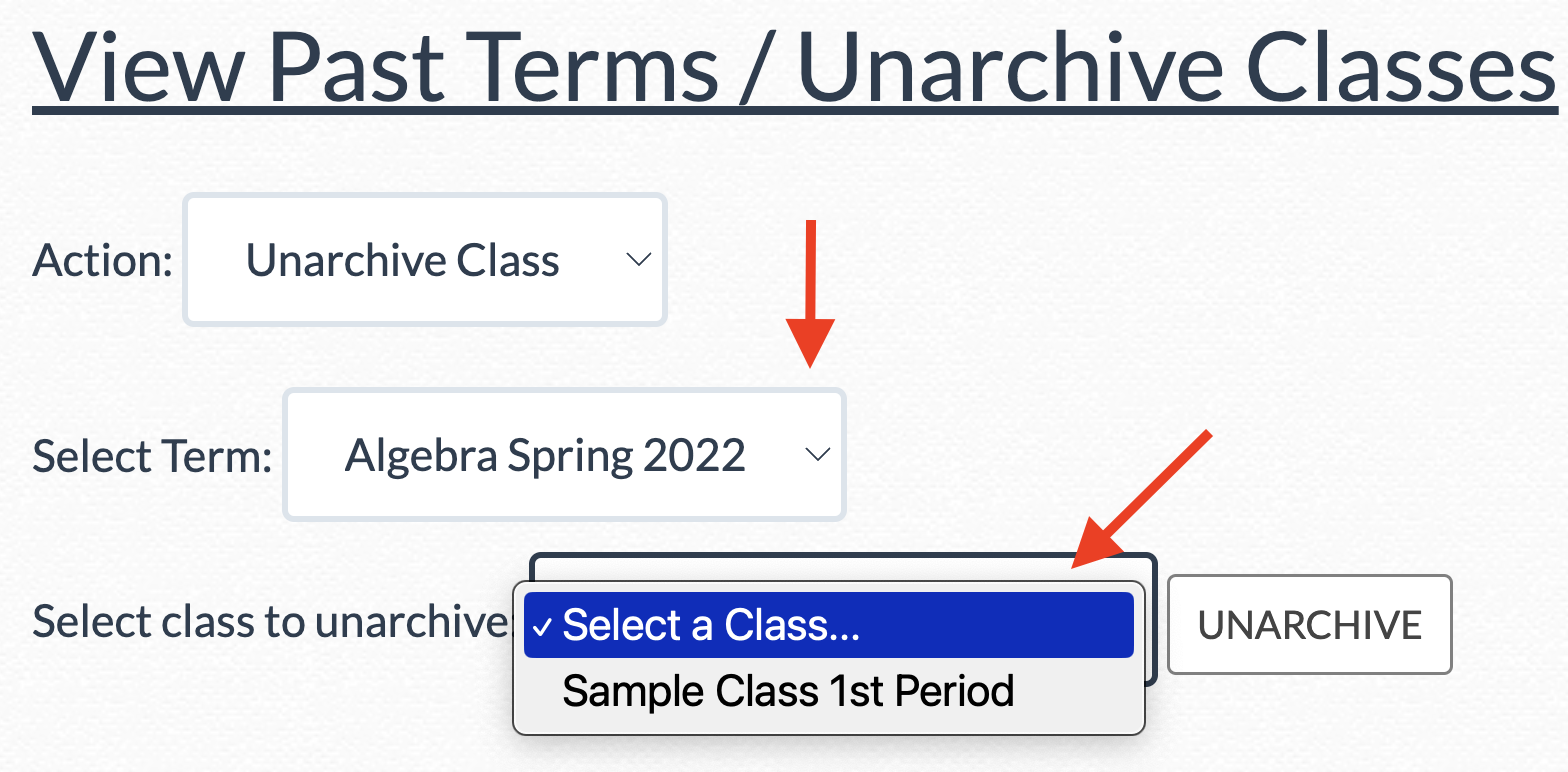 |
|
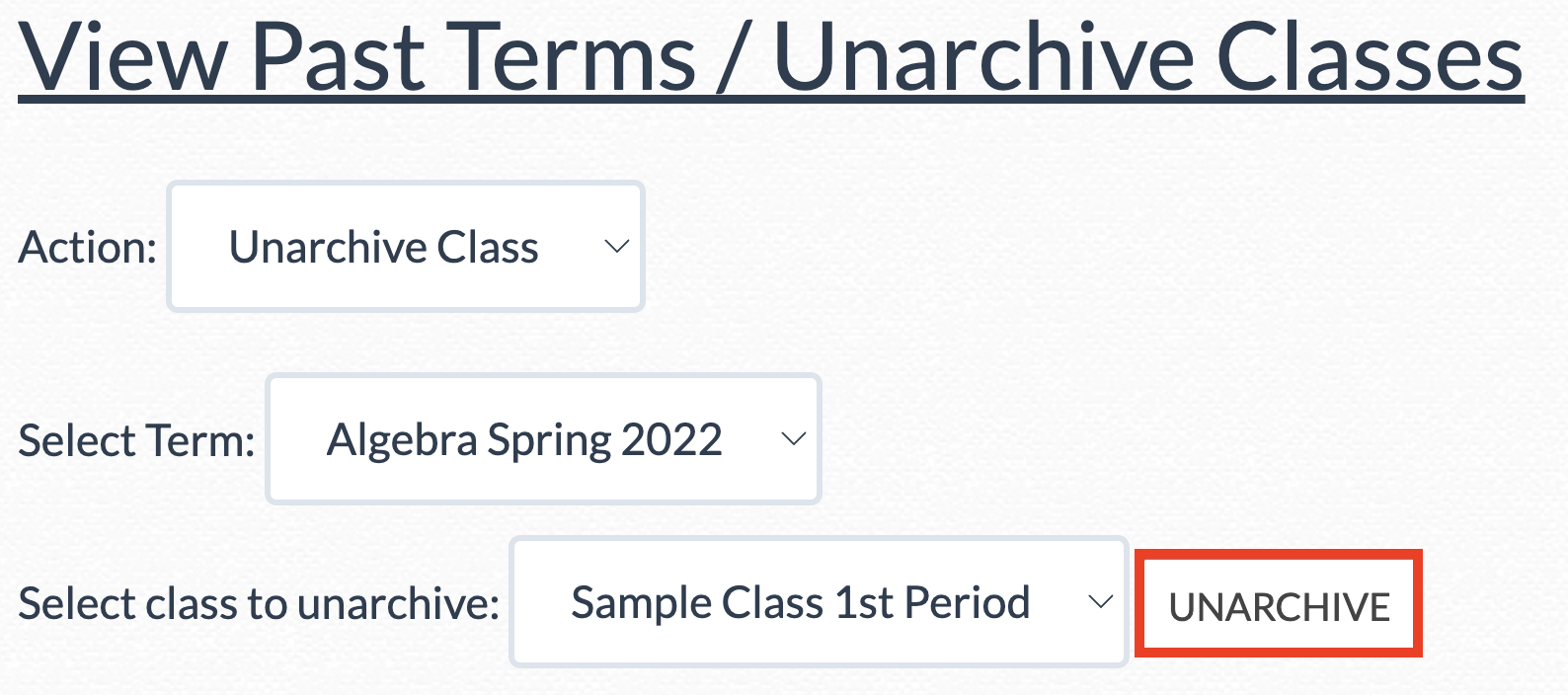
Finally, click “UNARCHIVE.” You should now see your class name and data return under the “Manage Students and Classes” page.
Repeat this process for each archived class and then try to launch into the integration again. |
 |
T814
This error message indicates that the integration may not have been set up correctly. First, please refresh and try again. If the issue persists, the LTI key and/or secret you entered may be incorrect. Please update the credentials in your DeltaMath app settings and try again.
This issue affects teachers with individual licenses who are setting up the DeltaMath app through their Canvas or Schoology teacher account.
For step-by-step instructions, refer to the appropriate guide below:
- Canvas Integration Set Up Guide
- Schoology Integration Set Up Guide
T815
This error message indicates that the integration may not have been set up correctly. First, please refresh and try again. If the issue persists, the LTI key and/or secret used for setup could be invalid. Please contact your LMS administrator to update the credentials in the DeltaMath app settings.
DeltaMath integrations must be configured at the school or district level. If you are a teacher on a site license, please reach out to your school or district’s DeltaMath administrator for assistance.
For step-by-step instructions, refer to the appropriate guide below:
- Canvas Integration Set Up Guide
- Schoology Integration Set Up Guide
T816
This error message indicates that the integration was not set up correctly. The LTI key and/or secret may be incorrect.
If you are a teacher on a site license, please contact your school or district’s LMS administrator to update the credentials in the DeltaMath app settings. As a reminder, LMS integrations must be configured at the school or district level.
If you are a teacher with an individual license, please update the credentials in your DeltaMath app settings and try again.
For step-by-step instructions, refer to the appropriate guide below:
CANVAS |
SCHOOLOGY |
T818
|
This error message indicates that you are attempting to launch into a DeltaMath integration, but currently have a free account.
To upgrade, please log into your account and click the “PLUS/INTEGRAL” tab in your top toolbar. You will see an option to upgrade your account to DeltaMath INTEGRAL. |
|
T819
This error message indicates that you are attempting to launch into a DeltaMath integration, but currently have a PLUS license. You have two options moving forward.
Continue with PLUS
You must have an INTEGRAL level license to launch into DeltaMath from an integration. However, if you would like to continue with your PLUS license, you can still view student data by being added as a coteacher to the class from within DeltaMath.
| To add you as a coteacher, the original teacher should click “manage” underneath the “Coteachers” column. | |
|
They will be prompted to invite you as a coteacher via email. They should type in your email address and click “send invite.” They should repeat this process for every class that you should be listed as a coteacher. |
|
|
Once invited, log into your DeltaMath account. You can go to TOOLS → MANAGE STUDENTS & CLASSES to click “Accept Invite.” Once you accept, you will be officially added to the class. |
 |
| Note: This will allow you to see student data, but you will not be able to create assignments within the integration. |
Upgrade to INTEGRAL
|
Upgrading your account to INTEGRAL will allow you to use the DeltaMath integration.
To upgrade, please log into your account and click the “PLUS/INTEGRAL” tab in your top toolbar. You will see an option to upgrade your account to DeltaMath INTEGRAL. |
|
T822
This error message indicates that you are attempting to launch into a class where you have been invited as a coteacher, but you already have a class with the same name within your DeltaMath account. Each class must have a unique name.
|
To edit the name of an existing class, please log into your account and navigate to TOOLS → MANAGE STUDENTS AND CLASSES. |
 |
Identify the class(es) that have the same name and select the  icon. icon. |
 |
|
Edit the name of the class to a unique name.
Click “save.”
Once updated, return to your LMS and try to launch into the class again. |
 |
- messages
- lti errors
Was this article helpful?