
Table of Contents
Link Assignments
Linking an assignment connects an assignment to more than one Infinite Campus section.
⚠️ Note: Edits made to a linked assignment will affect all sections the assignment is linked to.
If you would like a different Infinite Campus section to have a different assignment, click here to learn how to copy an assignment.
| When using the external tool, one of the options you will see is “Link to existing assignment." | 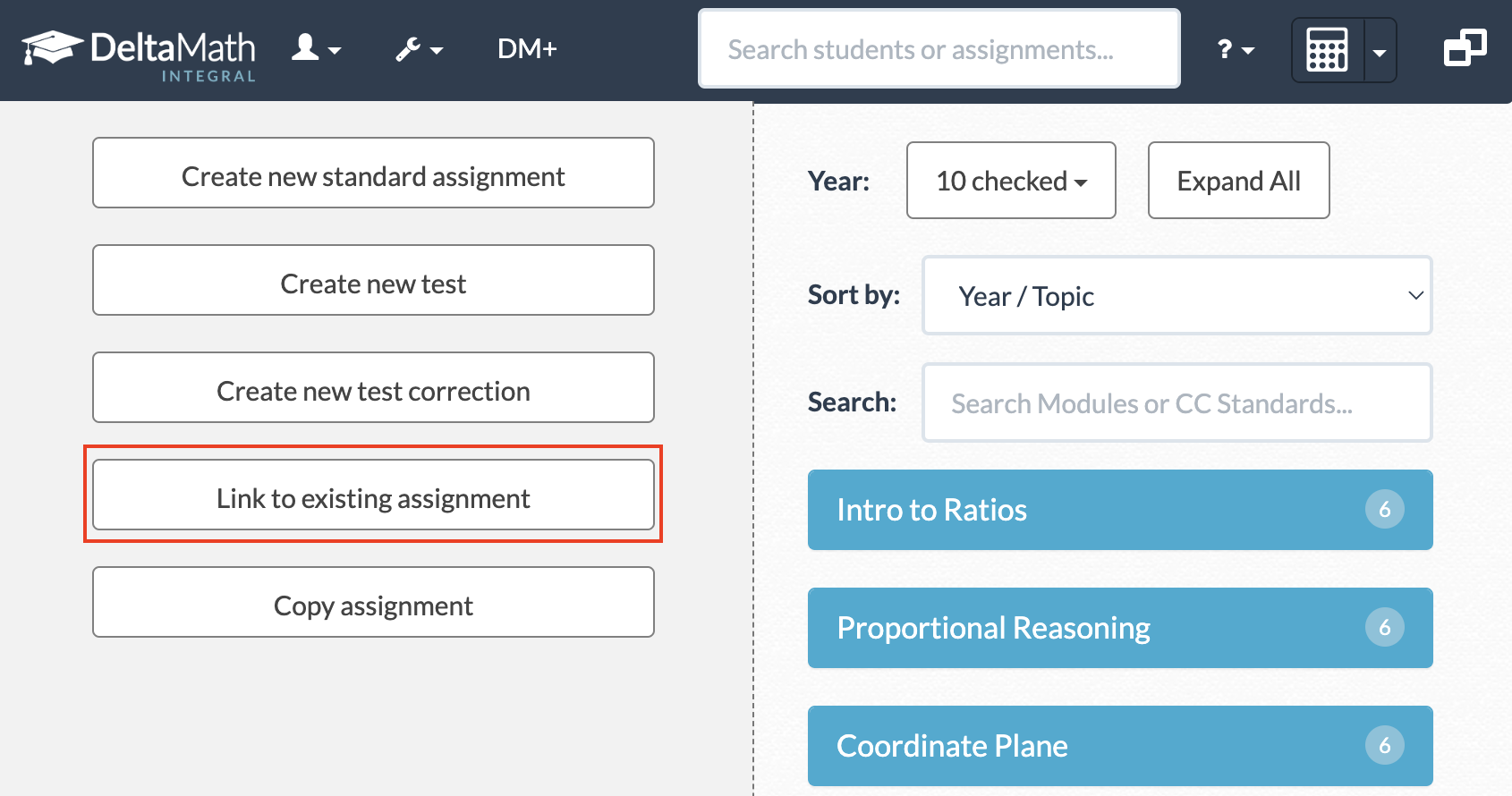 |
|
Your assignment list will be displayed, allowing you to link any assignment that is not assigned to a class or that is assigned to one of your other Infinite Campus courses. Note: You cannot link an assignment that is assigned to a non-Infinite Campus class. |
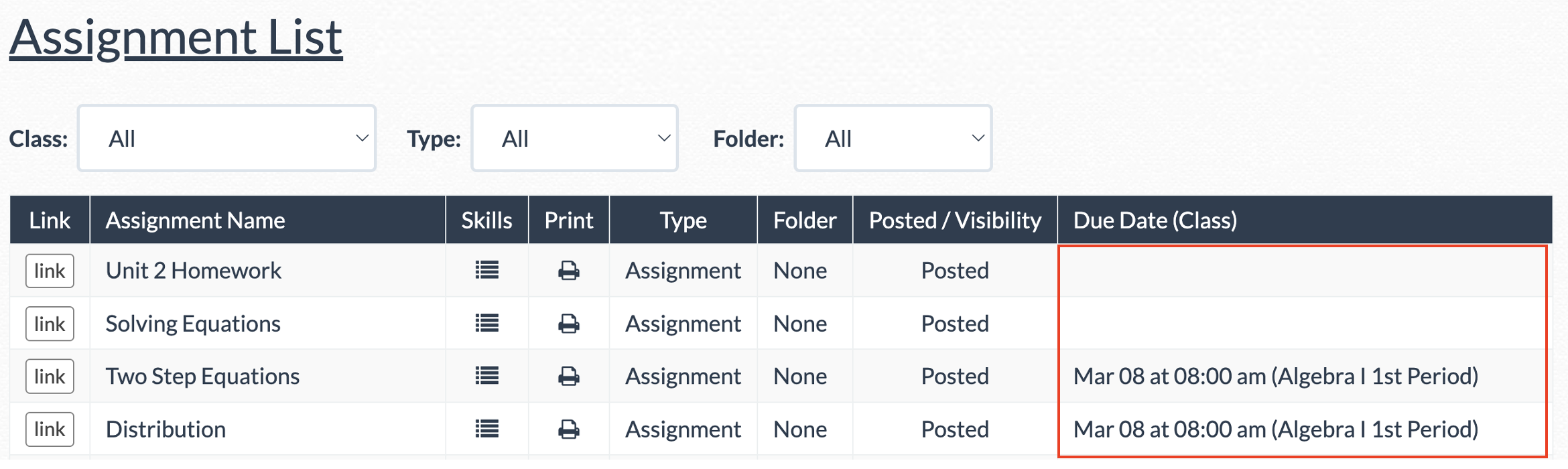 |
| Once you find the correct assignment, click “link." |  |
| You will then see all Infinite Campus sections currently linked to the assignment. | 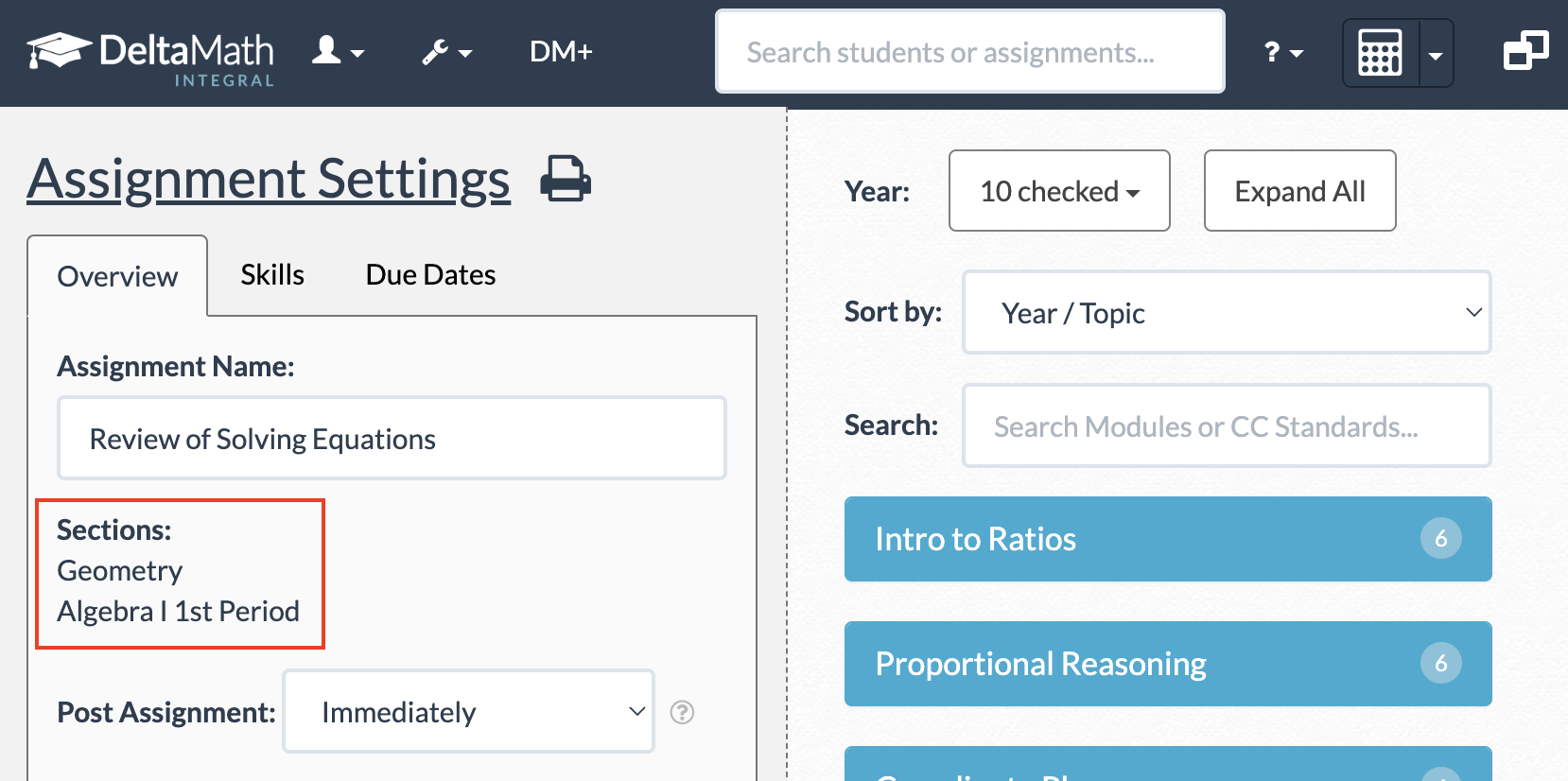 |
Change the Sections Linked
| If you would like to remove a section that is linked to an assignment, navigate to the Infinite Campus course that you would like to unlink from the assignment. |  |
| From there, edit the assignment. | |
|
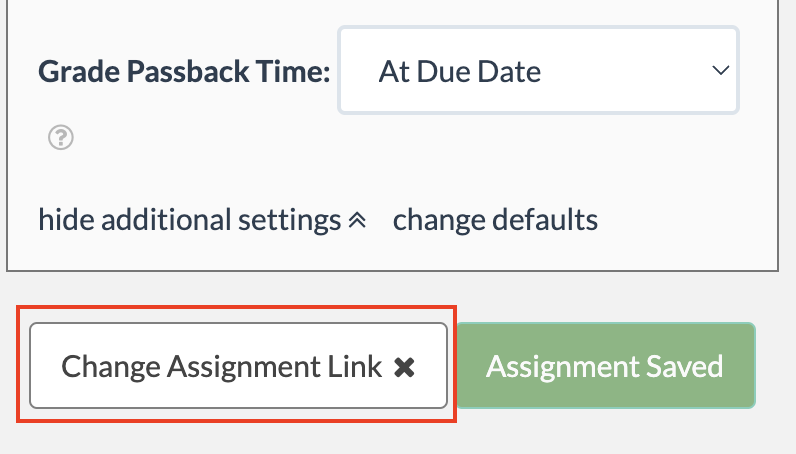
On the “Overview” tab, scroll down to the bottom of the settings and click the “Change Assignment Link” button. |
|
|
You will see a warning to let you know that you are removing the link from your assignment.
This means that the Infinite Campus framework for this assignment still exists in Infinite Campus. However, the DeltaMath portion of this assignment is no longer linked. |
 |
| Once you click the “Yes” button, you will see a message indicating that the assignment has been successfully unlinked. |  |
- external tool
- link
- linking
Was this article helpful?